
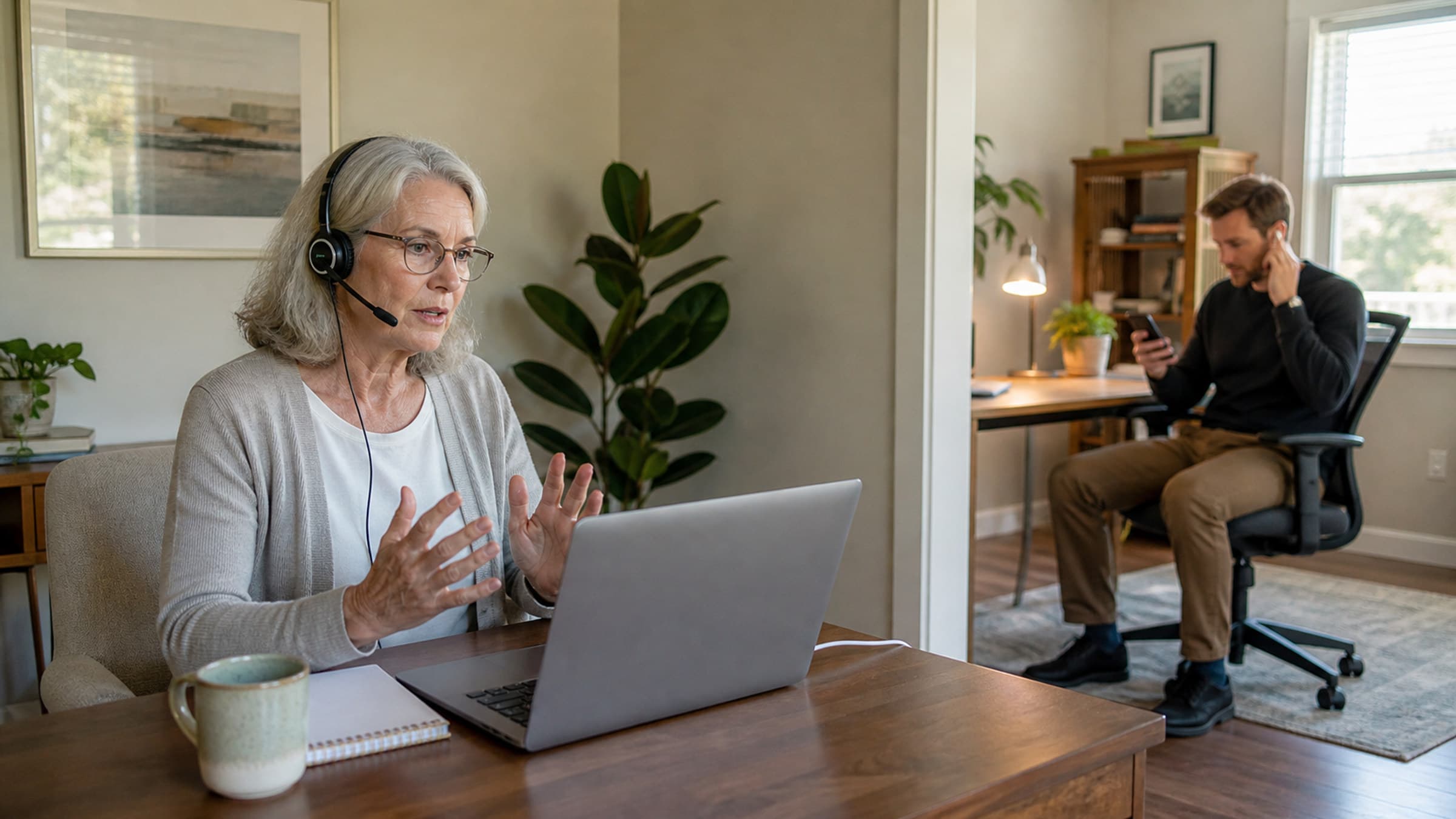
Rehearse from both sides
Ask a colleague, friend, or family member to play the client. Do not test by opening two browser tabs on the same computer. That skips the steps that are most likely to confuse someone and can create feedback between the two tabs.
Use the devices people will actually use. You might join as the practitioner from your usual computer while the other person uses a phone in another room. If many of your clients use tablets or older laptops, include one of those in a later rehearsal.
Give the other person only the information a client would receive. Do not stand beside them and point to the next button. Ask them to say when they feel unsure, then watch where the uncertainty appears.
You are not testing whether they are good with technology. You are testing whether the path gives an ordinary person enough information to enter the right session.
Start with the same kind of link a client receives
Do not begin from a saved bookmark or an internal admin page. Use a dedicated rehearsal link, never a link connected to a real client or appointment. Create an obviously fictional test appointment using contact details controlled by your practice, or generate a fresh temporary Quick Session link only for the rehearsal. Do not forward a real client's appointment link, even to someone you trust.
Send that test link using the same method you normally use. This lets you check the real join path without exposing appointment information or leaving another person with a link to a future session.
Ask the other person to open it while signed out. Check what happens before they enter the room:
- Does the page make it clear that they are joining the right practice or practitioner?
- Is the next action obvious?
- Does the browser ask for camera and microphone access in a way they can follow?
- Can they continue if they prefer to keep the camera off at first?
- If the link is opened on a phone, does it stay in the browser or unexpectedly send them elsewhere?
If you use confirmation or reminder messages to deliver the link, review those too. The link may work perfectly while the message around it leaves the client unsure about when to open it or what they need.
Write down the first point where your test person pauses. That pause is usually more useful than a general answer like, "It worked."
Check sound before picture
Clear sound matters more than polished video. A bright image does not help if either person cannot hear the conversation clearly.
Once both people are in the room, speak at a normal volume. Test the microphone you plan to use, then listen for echo, fan noise, hallway voices, traffic, or a speaker that makes private conversation easy to overhear.
Move one device to the place where it will sit during a real appointment. A laptop microphone can sound fine when you are leaning toward it and distant once you sit back in your usual chair.
If you use headphones, test the exact pair. Confirm that the microphone switches to the headset when you expect it to. If you do not use headphones, close the door and stand in the hallway while the other person speaks at a normal volume. Check how much can be heard outside the room.
Keep the solution practical. Moving a fan, closing a gap under a door, lowering the speaker volume, or keeping a wired headset nearby may help more than buying a complicated audio setup.
Look at what the camera reveals
The camera shows more than your face. It may also show a client name on a whiteboard, a family photograph, an open chart, a delivery label, or someone walking through the room behind you.
Join the rehearsal from the practitioner chair and look at the full frame. Remove or turn around anything that should not be visible. Close other client records and notifications before you share your screen. If you use a virtual background, test how it behaves when you move your hands or hold up an object.
Then check the basic picture. Your face should be visible without a bright window directly behind it. The camera should sit high enough that you can look toward it comfortably, not balance on a temporary stack that will be rebuilt before every session.
Aim for a setup you can repeat. A reliable lamp and a marked laptop position are more useful than a perfect arrangement that takes ten minutes to recreate.
Practice one small problem
A rehearsal that only covers the ideal path can create false confidence. Introduce one ordinary problem on purpose.
Turn off the microphone, deny camera access, switch from Wi-Fi to mobile data, or leave and rejoin the room. Check whether both people understand what happened and can recover without starting over.
The goal is not to test every possible failure. It is to make the first interruption familiar.
Choose one person to lead the recovery. In a real session, that is usually the practitioner. Use calm, specific language such as:
I can see you, but I cannot hear you yet. Look for the microphone button at the bottom of the screen. If that does not work, leave the room and open the same link again.
Avoid giving several instructions at once. Solve the current problem, confirm that it worked, then continue.
Decide what happens if the call cannot continue
Sometimes the room, device, or connection will not cooperate. Decide in advance how long you will troubleshoot and what happens next.
Your backup plan might answer four questions:
- How will you contact each other if the video room drops?
- How many minutes will you spend trying to reconnect?
- Can the appointment safely continue another way, or does it need to be rescheduled?
- Who records the outcome and any follow-up that is needed?
The right answer depends on your service, professional obligations, and the client's situation. Do not promise that every appointment can simply move to a phone call. Some work depends on visual information, consent, location, or a level of privacy that another channel may not provide.
Tell clients the useful part of the plan before the session. A short note can say, "If we disconnect, open the same link again. If we are still apart after five minutes, I will contact you at the number on file to decide the next step."
Change the timing and contact method to match your practice. Keep sensitive details out of an ordinary email or text.
Keep a tiny setup checklist
Turn what you learned into a checklist that fits beside your computer:
- Close the door and remove visible client information.
- Connect the intended microphone or headset.
- Open the session and check camera framing.
- Silence unrelated notifications.
- Keep the client link and backup contact plan within reach.
Run through it before the first video appointment of the day. Repeat the full two-person rehearsal after a meaningful change, such as a new computer, browser, headset, room, internet service, or join-link workflow.
Five minutes of practice will not prevent every interruption. It will make the common ones less surprising and give you a calmer way to respond when a client is already waiting.
Stillpoint video sessions are available as a paid add-on and run in the browser, so clients can join without installing a separate app or creating a third-party account. For an unscheduled conversation, Quick Session creates a temporary room with a shareable link and QR code. Whichever path you use, rehearse the exact link before it carries a real appointment.