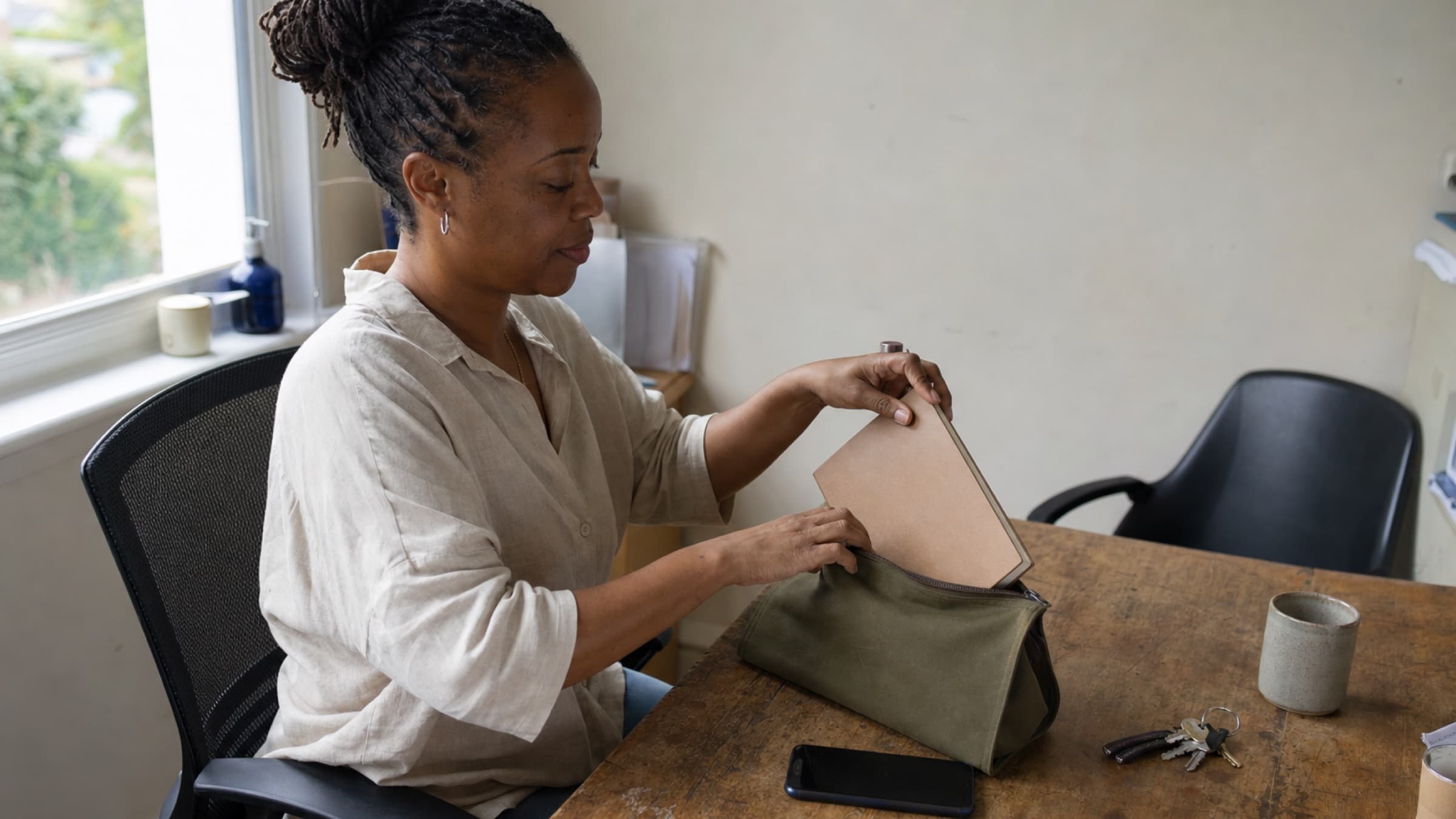
When client appointments share a calendar with your dentist visit and your kid's soccer game, your day off never quite looks like a day off. Here is how to separate the two without losing the protection that stops double bookings.
Your calendar should help you protect your time off, not remind you of work every time you check when dinner is.
Syncing your practice appointments to Google Calendar is one of the first things many practitioners set up, and for good reason. Your whole week is in one place. You can see that Tuesday is full before you agree to coffee with a friend. Your personal plans block your booking page, so a client cannot book you during your own physio appointment.
Then, a few months in, something small starts to bother you.
It is Saturday morning. You open your calendar to check what time the birthday party starts, and the first thing you see is Monday at 8:00. Then Monday at 9:00. Then a full stack of client names that you did not need to think about until Monday. Or you share your calendar with a partner so they can plan around you, and suddenly they can see your caseload too.
None of this is a crisis. It is just the slow blur of work into everything else. The fix is simple: keep your appointments syncing, but give them a calendar of their own.
One calendar or two
Google Calendar lets one account hold several calendars. Your main calendar is the one created with your account. You can add others, each with its own name, color, and sharing settings, and you can tick or untick each one to show or hide it.
When practice appointments live on your main calendar, they are mixed in with everything. You cannot hide them without hiding your own plans, and you cannot share your plans without sharing them.
When appointments live on a separate calendar, you get choices you did not have before:
Hide work when you are off. Untick the work calendar on a Friday evening, and your weekend shows only your weekend. Tick it again on Monday morning.
Give work its own color. At a glance, you can tell a client session from a school pickup, even on a crowded day.
Share each one on its own terms. A partner or family member can see your personal calendar without seeing a single client appointment. An assistant can see the work calendar without your personal life.
Keep your phone quieter. Many phones and watches let you choose which calendars send alerts, so you can stop work reminders from buzzing you on your day off.
You still need protection from double bookings
The reason most practitioners sync in the first place is to stop clients booking over personal plans. That protection matters more than tidiness, so it is worth being clear about how it works when you split things up.
Your personal events are still what block your booking times. The dentist appointment, the school play, the afternoon you set aside to rest. As long as those stay on your main calendar and your practice software reads busy times from it, clients will not be able to book over them.
Your client appointments are already in your practice calendar, so they do not need to block anything a second time. Moving them to their own Google calendar changes where you see them, not how your availability works.
One habit helps: put personal plans on your main calendar, not the work one. If you add a personal event to the work calendar by mistake, it may not block your booking page the way you expect.
Decide what the work calendar shows
A separate calendar is a good moment to look again at how much detail each appointment carries. Anything on a Google calendar can appear on a lock screen, a watch, a shared family display, or a laptop someone else borrows.
Many practitioners find that the service name alone is enough. "Massage, 60 min" tells you what you need to prepare. A client's first name can help if you see several people a day and like to picture who is coming. Full names and notes are rarely needed outside your practice software, and they are the details you would least like a stranger to glance at.
If you share the work calendar with anyone, choose the detail level with that person in mind, not just yourself.
Make the switch at a quiet moment
Moving appointments from one calendar to another is not hard, but it is easiest when you are not about to start a busy day. A few steps make it smooth:
Pick a calm time. A Sunday evening or the end of a light afternoon works well. Give it ten minutes.
Check your main calendar afterwards. Make sure your upcoming appointments have moved and that you do not see each one twice.
Set the color and alerts. Choose a color you will recognise instantly, and decide whether the work calendar should notify you on your phone.
Review who can see what. Look at the sharing settings for both calendars. Remove anyone from the work calendar who does not need to be there.
Tell anyone who relied on the old setup. If a partner used to check your calendar to see when you finish work, let them know your appointments now sit on a separate calendar they may want to view.
Build an off switch into your week
The most useful part of a separate calendar is the one you do with it. Here are a few small routines practitioners find helpful:
A Friday untick. When you close up for the weekend, hide the work calendar. If something urgent comes up, you can always tick it again.
A Sunday look-ahead. On Sunday evening, show the work calendar for five minutes, glance at Monday, then hide it again until morning.
Holiday mode. When you are away, hide the work calendar completely. Your personal plans and travel stay visible, and your practice can run without living in your pocket.
These are not rules. They are simply easier when work has a switch.
When things change
A few situations are worth knowing about before they happen:
If you disconnect your calendar sync, a separate work calendar usually stays in your Google account with the appointments already on it. Delete it in Google Calendar settings if you no longer need it.
If you change Google accounts, set the separate calendar up again in the new account.
If you delete the work calendar in Google by mistake, your appointments will need somewhere to go. Check where they are landing so nothing slips past you.
How Stillpoint helps
If you connect Google Calendar in Stillpoint, open Integrations in the sidebar, click Manage next to Google Calendar, and choose under Where appointments go. Your main calendar keeps appointments alongside your own events, which is where they go when you first connect. A separate Stillpoint calendar adds a calendar named "Stillpoint" to your Google account and puts appointments there, so you can untick it, give it its own color, or share it on its own.
The first time you pick the separate calendar, Google asks you to allow Stillpoint to add a calendar, and that permission only covers calendars Stillpoint creates. Appointments that are already synced move over within a few minutes, moved rather than copied, so you will not see doubles. If you switch back and forth, Stillpoint reuses the same calendar instead of making another.
Your personal events on your main calendar keep blocking booking times either way. If you reconnect with a different Google account, or delete the Stillpoint calendar in Google, appointments go back to your main calendar until you pick the separate one again. In the same panel you can choose what each appointment shows: the service only, the service and client first name, or full details. You can read more about integrations and scheduling.
A beautiful, branded booking page where clients choose their service, pick a time, fill out intake forms, and pay, all before they walk through your door. Start free with no card required.